Passwordless security guide

Passkeys Explained — The Future of Passwordless Security

Passkeys replace reusable passwords with cryptographic credentials unlocked by your face, fingerprint, device PIN, or security key. This guide explains what changes, what still needs encryption, and how to choose the right protection for accounts, devices, and documents.

By the Passkey Field Guide editorial team Reviewed July 18, 2026 Official-source checked
Definition

What Are Passkeys

A passkey is a credential used to sign in without typing a traditional password. When you create one, your device or credential provider generates two mathematically linked keys. The service receives a public key. Your private key remains protected locally or inside your passkey provider.

At sign-in, the service sends a challenge. Your device signs that challenge only after you approve it with a local unlock method such as biometrics, a device PIN, or a security key touch. The private key is not sent to the website, and there is no shared password for a fake login page to capture.

Passkey
A FIDO credential used for passwordless or strongly verified account sign-in.
Authenticator
The phone, computer, password manager, or hardware key that holds or accesses the private credential.
Relying party
The website or app that stores the public key and verifies the signed challenge.
Fingerprint authentication icon representing biometric passkey approval
PhoneLaptopSecurity keyPassword manager
Private key
Stays under your control
Start with your situation

When you need this

Authentication and encryption solve different problems. Choose the situation closest to yours to see the right starting point.

Account security

How passkeys and passwordless authentication work

“Passwordless” describes the sign-in experience. Underneath, the security comes from public-key cryptography, a trusted authenticator, and a local user-verification step.

Method 1: A synced passkey

A passkey provider encrypts and synchronizes the credential so it can be used on your other approved devices.

Easy2–5 minutes
  1. Open the account’s security settings.
    Look for Passkeys, Security keys, Sign-in methods, or Passwordless sign-in.
  2. Choose to create a passkey.
    Your browser or operating system asks where it should be stored.
  3. Approve with your device unlock.
    Use your fingerprint, face, device PIN, or another local verification method.
  4. Test recovery before relying on it.
    Confirm another trusted device or recovery method can restore access if the first device is lost.
Best forEveryday accounts used across a phone, tablet, and laptop.
LimitationYour recovery model depends partly on the passkey provider and the security of your cloud account.

Method 2: A device-bound passkey

The private credential remains on one authenticator instead of synchronizing through a cloud credential service.

Moderate5 minutes
  1. Choose the local device or hardware authenticator.
    On supported systems, select a security key, phone, or local Windows credential store.
  2. Create the credential on that authenticator.
    The website registers its public key while the private key stays with the device.
  3. Add a second authenticator.
    For important accounts, register a backup hardware key or another approved passkey.
Best forHigh-assurance access where physical possession should remain part of the control.
LimitationLosing the only authenticator can make recovery difficult or impossible without an account recovery route.

Method 3: A FIDO2 USB security key

A hardware security key performs the cryptographic operation and normally requires a touch, PIN, or biometric verification.

Strong5–10 minutes

A USB security key is not simply a flash drive containing a password. A proper FIDO2 key protects a private credential in hardware and proves possession to the correct website origin. Some keys support USB-A, USB-C, NFC, or more than one transport.

Do not create a “USB passkey” by placing a text password on an ordinary flash drive. That does not create FIDO authentication and may expose the secret if the drive is copied.
Best forAdministrators, journalists, finance teams, and anyone protecting high-value accounts.
LimitationIt costs more, can be misplaced, and should be paired with a registered backup key.
USB hardware security key used for FIDO2 passwordless sign-in
Platform notes

Passkeys by Platform

The standard is shared, but storage, synchronization, device approval, and account recovery differ by ecosystem.

Add a passkey to a Google Account

Open your Google Account security settings, locate the passkey and security-key area, choose to create a passkey, and approve the request with your device screen lock. Create passkeys only on devices you personally control. Removing a passkey from the account stops that credential from signing in, but it does not necessarily remove every local record shown by the operating system or password manager.

Passkeys on iPhone, iPad, and Mac

Apple devices can store passkeys in the Passwords system and synchronize them through iCloud Keychain when enabled. The device uses Face ID, Touch ID, or the device passcode to approve access. To disable a particular passkey on iPhone, remove it from the relevant account entry in the Passwords app and review the website’s own security settings.

Microsoft account passkeys

Microsoft supports passkeys through Windows, mobile devices, and compatible security keys. On Windows 11, passkeys can be created and managed through system settings on supported releases. Windows Hello can act as the local approval method while the account or website verifies the passkey.

Does Firefox support passkeys?

Current Firefox releases can use passkeys on supported operating systems and with compatible authenticators. Actual behavior depends on the website, operating system APIs, and chosen credential provider. Keep Firefox and the operating system updated when a passkey prompt does not appear.

Create a passkey for Yahoo

Yahoo provides passkey controls in account security for eligible accounts and devices. Create the credential from a trusted device, verify it works before removing older sign-in routes, and keep recovery information current.

Instagram, Snapchat, and changing app support

Passkey support is service-specific and can vary by account, region, app version, and rollout stage. Instagram’s public help has historically emphasized passwords and two-factor authentication rather than a universal passkey setup flow. Snapchat support should also be checked inside the current app’s account-security settings. Never follow an unofficial “bypass” tutorial to force support that the service does not offer.

Windows security

Windows Hello & TPM

Windows Hello is the local user-verification experience. It lets you approve access with a face scan, fingerprint, or device PIN. A Trusted Platform Module, or TPM, is a hardware-backed security component that can protect cryptographic material and help bind sensitive keys to the device.

They are related, but they are not the same thing. A passkey is the credential recognized by a website or app. Windows Hello may unlock that credential. The TPM may help protect the underlying private key or other device secrets.

Windows Hello bypass queries need an owner-safe answer. There is no responsible universal bypass. Use the official PIN reset, Microsoft account recovery, organizational help desk, recovery key, or device-reset route that applies to the computer you own or administer.
Windows Hello and TPM responsibilities
ComponentPrimary roleWhat it does not replace
Windows HelloVerifies the local user with biometrics or a PIN.Document encryption and off-device account recovery.
TPMProtects keys and supports device integrity functions.A backup plan if the device fails.
PasskeyAuthenticates to a participating website or app.Encryption of files stored on the drive.
BitLockerEncrypts a Windows volume at rest.Website sign-in and per-document permissions.
Cross-device use

Passkey sync and cross-device transfer

Passkeys are not universally “per device.” Some are synchronized by a credential provider so the same account can be accessed from multiple trusted devices. Others are device-bound and remain on one phone, computer, or hardware key.

Are passkeys device specific?

The accurate answer is: sometimes. A synced passkey is available through the provider’s secured ecosystem after you approve a new device. A device-bound passkey does not leave its authenticator. The website may not clearly label which model was used, so review the authenticator name and your provider’s documentation.

Using a phone passkey on a laptop

Cross-device authentication can let the laptop display a QR code and communicate with a nearby phone. The phone confirms proximity and asks for local verification before signing the website challenge. This can sign you in without copying the private key onto the laptop.

Can I use a passkey on a Samsung phone?

Yes, when the phone, browser, credential provider, and website all support the relevant passkey flow. Keep Android, Google Play services, Samsung software, and the browser current. A screen lock must normally be configured before a passkey can be created.

Best practice: For a critical account, register more than one independent authenticator. A synced ecosystem plus a separately stored hardware key provides a stronger recovery path than relying on one phone.
Cross-platform synchronization across desktop and mobile devices
A different security layer

Why Passkeys & Passwordless Authentication Is Not the Same as Full Encryption

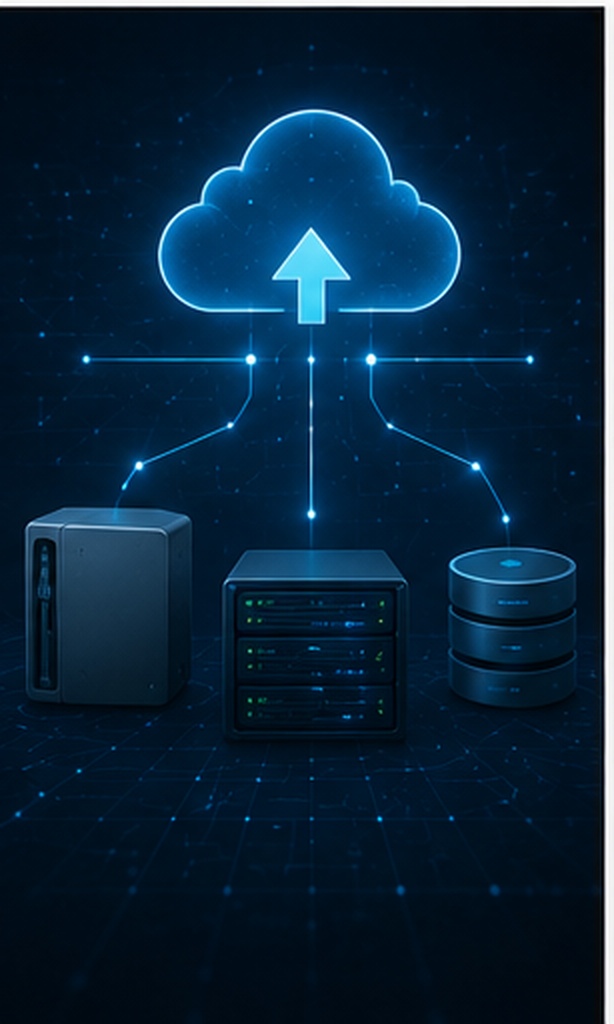
Diagram of encrypted backups across cloud storage platforms

A passkey proves who is signing in. Encryption changes the file itself so unauthorized people cannot read its contents. You often need both.

1

Account authentication

Controls access to a website, app, or cloud account. Passkeys are designed for this layer.

Identity control
2

Device encryption

Protects a disk or phone at rest, such as BitLocker or a mobile device’s built-in encryption.

Device control
3

File encryption

Protects the document or archive wherever it travels, subject to the format and password strength.

Data control

Open Password vs Permissions Password — Explained

An open password is required before the recipient can view the document. In a properly implemented encrypted format, it is used to derive or unlock the cryptographic key. A permissions password is used to restrict actions such as editing, printing, or copying after the file is opened.

Permissions restrictions are not a perfect anti-copy system. A compliant viewer may enforce them, but a determined recipient can photograph a screen, use accessibility routes, re-create content, or open the file in software that handles restrictions differently. Use permissions as a policy and friction layer, not as proof that copying is impossible.

Why Document Password Protection Is Not the Same as Encryption

Some programs use the phrase “password protect” for strong encryption. Others use it for a weak application lock, a permissions flag, or an access prompt that leaves data readable in storage. Before trusting a method, verify the file format, algorithm, key derivation, and whether filenames or metadata remain visible.

MethodTypical protectionUseful forMain caution
Modern Office encryptionPassword-based encryption implemented by current Microsoft Office formatsWord, Excel, and PowerPoint files exchanged with compatible recipientsCompatibility and recovery are limited if the password is lost
PDF open passwordEncrypts content and requires a password to openRead-only distribution across common platformsSecurity depends on the selected PDF encryption level and password
PDF permissions passwordControls editing, printing, copying, or changesDiscouraging casual modificationDoes not prevent every extraction or screenshot path
7-Zip AES-256 archiveEncrypts files inside a 7z archive; header encryption can also hide namesBatch protection and mixed file typesRecipient needs compatible extraction software
Encrypted locker or containerPlaces many files inside an encrypted managed vaultOngoing private collections and local or cloud workflowsRequires the relevant software and a recovery plan

Lock document from editing

Use the document format’s permissions or restrict-editing controls when the goal is workflow control. For sensitive content, combine that with encryption and access controls. A “read only” attribute by itself is easy to remove.

Prevent document copying

No ordinary document password can guarantee that a recipient will never reproduce visible information. DRM can add identity, expiry, policy enforcement, and revocation, but even DRM cannot eliminate cameras or manual transcription.

Safe transfer

How to Share a Protected Document Safely

  1. Remove unnecessary content and metadata.
    Inspect comments, revision history, hidden worksheets, tracked changes, author fields, GPS data, and embedded objects before encryption.
  2. Choose protection that travels with the file.
    Use a strong Office open password, encrypted PDF, AES-256 archive, or encrypted container rather than relying only on the email account.
  3. Create a unique, long password.
    Use a password manager to generate a random secret or use a long passphrase that is not reused anywhere else.
  4. Send the file and password separately.
    For example, send the protected file by email and communicate the password by an authenticated call or separate secure channel.
  5. Confirm the recipient and retention period.
    Ask the recipient to delete temporary copies when appropriate and revoke the cloud share if the link no longer needs to work.
Cloud storage changes the threat model, not the file format. A protected file uploaded to Drive, OneDrive, or Dropbox usually remains protected as a file, but previews, imports, browser editing, indexing, and collaboration features may be limited. Cloud account security and sharing permissions still matter.
Secure virtual drive protecting a collection of sensitive documents
Our pick for an ongoing protected file collection

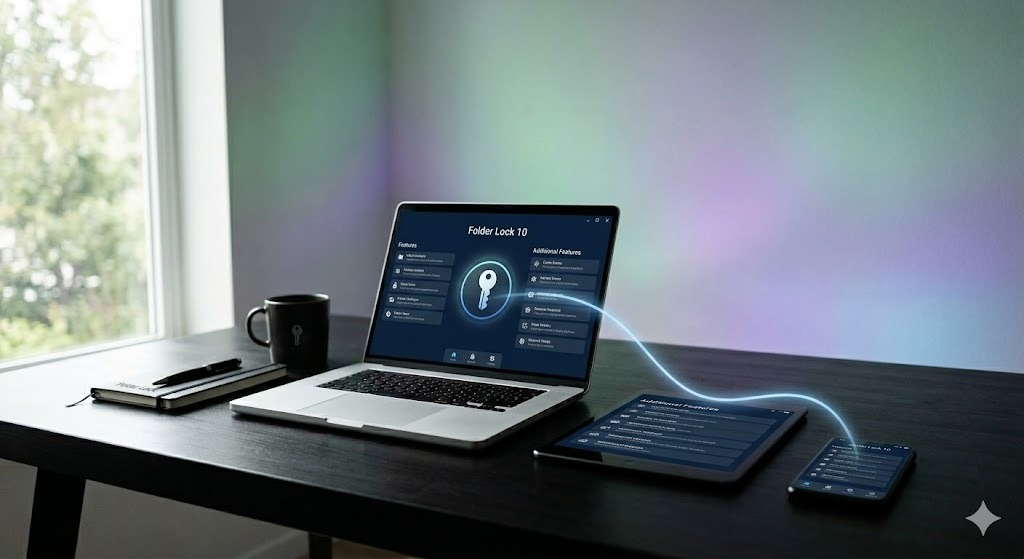
Folder Lock is the stronger fit when the files need their own security boundary

A passkey can stop a stolen website password from becoming an account takeover. It does not encrypt tax records, client folders, scans, or exports after they reach a computer. Folder Lock addresses that second problem by placing files inside encrypted lockers that can live on a Windows PC or alongside supported cloud-sync folders.

We recommend it for people who repeatedly handle mixed file types and want one managed place for them. It is less convenient for a single document that must open in the recipient’s existing software, and it is not a substitute for passkey management, full-disk encryption, backups, or a controlled document portal.

AES-256 locker encryption Desktop and cloud lockers Windows, Mac, iOS, Android Free and Pro editions
Best matchLong-lived collections, mixed formats, protected local storage, and supported cloud-sync workflows.
Choose a native file password insteadOne PDF, Word file, or workbook that another person must open without installing Folder Lock.
Product capabilities in context

What Folder Lock adds beyond a document password

The useful distinction is not “more security” in the abstract. It is whether you need to protect one file, a reusable collection, a cloud-synced locker, or data that moves between desktop and mobile devices.

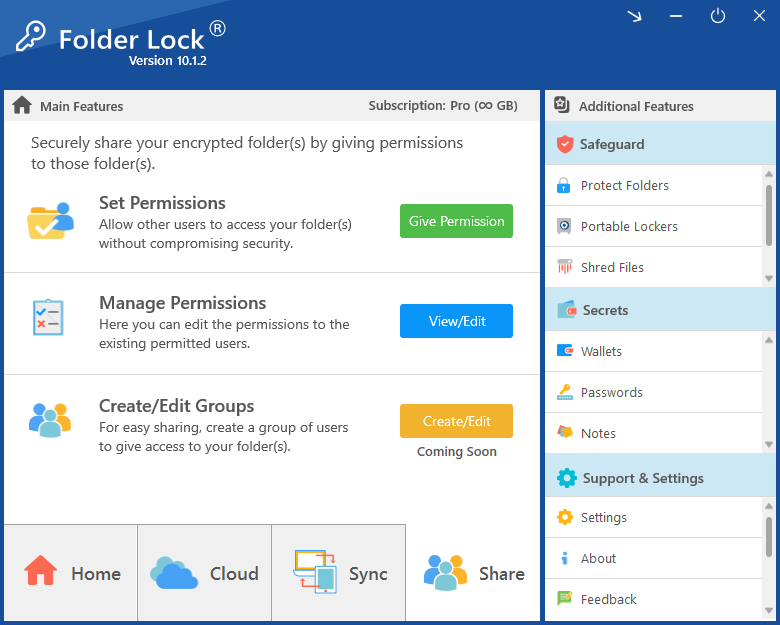
Folder Lock 10 desktop application main screen with security tools

The Windows and Mac editions can maintain a local Desktop Locker and separate lockers associated with Dropbox, Google Drive, and OneDrive. Files are encrypted before the protected locker is synchronized, so the cloud service carries the encrypted form rather than an ordinary readable folder.

Best for: records that change over time and must remain grouped. Not ideal for: live browser collaboration, cloud preview, or search inside the encrypted content.

The current comparison material describes two synced devices in the free edition and five in Pro. Paid desktop plans also add user sharing, which lets authorized people use their own access credentials instead of circulating one locker password. Confirm the exact license and sharing workflow for every platform before deployment.

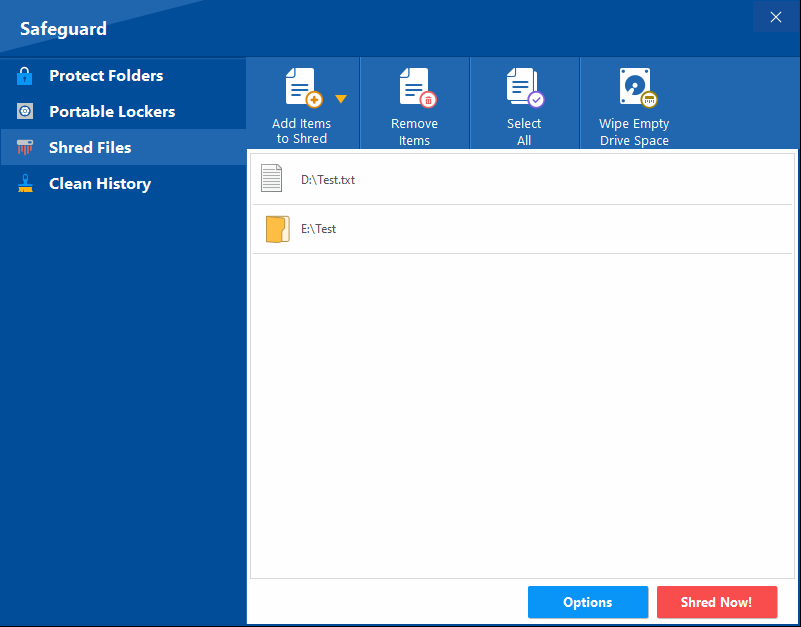
On Windows, the broader suite includes controls for hiding or restricting files and folders, creating portable lockers, erasing selected local data, and clearing certain activity traces. These functions solve different problems from encryption. A hidden item is not automatically an encrypted item, and local erasure cannot remove copies that already exist in email, backups, or cloud history.

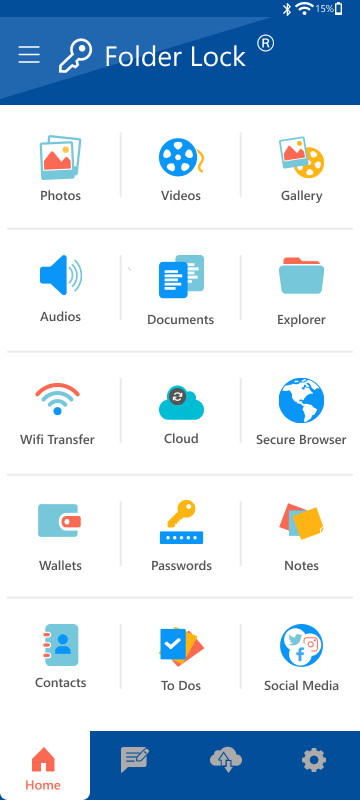
The Android and iOS apps cover private media, documents, audio, notes, financial details, encrypted cloud backup, a private browser, and records of failed access attempts. Android additionally documents app locking, while the iPhone and iPad version documents wireless transfer to a computer. The two mobile apps should not be treated as identical.

The current Mac edition is listed for macOS 13 and later. It provides local and supported cloud lockers, cross-device access, sharing, and the Secrets area. The Windows-only Safeguard set is not part of the Mac feature list, so Windows instructions for folder hiding, portable lockers, shredding, or history cleanup should not be copied to macOS.

Folder Lock cannot prevent a person from photographing readable content, protect an already-unlocked device from every form of malware, or replace an independent backup. Access also depends on the correct account, password, compatible app, and a tested recovery path. Protect a small sample first, confirm that it opens on the intended devices, and preserve a separate verified backup before moving the only copy.

At a glance

Native, free, and dedicated methods compared

The right method depends on whether you are securing an account, one file, a batch, a device, or a long-lived collection.

MethodDifficultySecurityCostBest forLimitations
Synced passkeyEasyHigh for sign-inUsually freeEveryday account accessDoes not encrypt files
Hardware security keyModerateVery high for sign-inHardware purchaseHigh-value accountsNeeds backup and physical care
Native Office passwordEasyStrong in current formatsOffice license may applyOne Office documentFormat and app compatibility
Encrypted PDFEasy to moderateStrong when modern settings are usedTool-dependentPortable read-only sharingPermissions are not absolute DRM
7-Zip AES-256ModerateStrongFreeBatching mixed filesRecipient needs extraction support
Folder LockModerateStrong managed encryptionFree and paid editionsOngoing local or cloud-synced collectionsWindows has the broadest toolset; features vary on Mac and mobile
Folder ProtectEasyAccess-control focusedPaid productLocking and restricting Windows itemsNot a universal recipient format
Verdict: use passkeys for account access, native encryption for a single compatible document, AES archives for one-time batches, and an encrypted locker for collections you manage over time.
Step by step

How to protect sensitive documents using Folder Lock

This owner-authorized workflow follows the current Windows edition. Labels and account screens may change, so use the official installer and confirm each step with a small test set.

1

Install the Windows edition from the developer

Use the official NewSoftwares download, review the installer prompts, and keep the default program location unless your organization has a documented reason to change it.

2

Choose where the Desktop Locker will be stored

During setup, select a location on a trusted drive with enough free space for the collection and its future growth. Avoid removable media that is frequently disconnected unless portability is the specific goal.

3

Create or sign in to the Folder Lock account

Register with an email address you control, set a unique password, and complete the email verification step. Record legitimate recovery details in a secure password manager rather than in the locker itself.

4

Add a small test group before the full migration

Open the Desktop Locker, copy in a few noncritical files, and check that names, dates, and contents remain intact. This separates a configuration problem from a large migration problem.

5

Encrypt, close, and reopen the locker

Use the locker control to return the collection to its encrypted state, then confirm that the mounted location is no longer readable in the normal file browser. Sign back in, decrypt it, and verify the test files again.

6

Add backup and sync only after the local test passes

Choose a supported cloud locker when cross-device access is needed, or keep an independent encrypted backup on separate storage. Test restoration and access on every required platform before relying on the workflow.

Folder Lock 10 Desktop Locker screen for encrypted local storage
Account access
Use a unique Folder Lock password and protect the email account used for recovery.
Device access
Keep Windows Hello, screen locking, updates, and full-disk encryption enabled.
Locker encryption
Place the sensitive collection inside an encrypted local or supported cloud locker.
Sharing policy
Grant access only to named users and avoid sending one shared secret through the same channel.
Recovery copy
Keep a separate tested backup and the information needed to recover your account.
Technical context

How the product fits into a layered security plan

A passkey authenticates you to a website or app that supports FIDO credentials. Folder Lock uses its own account and locker access process to control encrypted data. Adding a passkey to Google, Microsoft, or Apple does not automatically unlock a Folder Lock locker, and Folder Lock is not presented as a general passkey manager.

The product materials identify AES-256 for locker encryption. That protects data while the locker is closed, but the files are readable while the locker is open. Endpoint malware, screen capture, copied exports, weak account recovery, and unencrypted backups remain separate risks.

Desktop, Dropbox, Google Drive, and OneDrive lockers are separate storage choices. The cloud provider can still manage the encrypted object, account permissions, versions, and deletion history, but it should not be expected to preview or collaboratively edit the protected contents.

The paid desktop workflow supports granting access to other users with separate credentials. This can reduce dependence on one shared password, but it still requires identity administration, removal of former users, and testing from the recipient’s device.

Folder Protect can apply Windows-level rules that hide an item, block opening it, or prevent changes and deletion. Those rules are useful on a managed Windows computer, but they do not turn the file into a universally encrypted document that remains protected after it leaves that machine.

Folder Lock 7 Lite was described as a reduced product centered on folder locking without the encryption functions of the full suite. The current Folder Lock 10 Free edition is a different offer with a limited encrypted locker and device allowance. Use the version number and feature table, not the word “free” or “lite” alone, when comparing downloads.

Folder Lock 10 sharing permissions screen for authorized users
Folder Lock 10 encrypted notes screen for private information
Identity boundary
Passkeys or strong account controls reduce unauthorized sign-in.
Device boundary
Screen lock and disk encryption protect the computer when it is not in use.
Locker boundary
Closed lockers keep the selected file collection encrypted.
Policy boundary
Sharing rules, retention, backups, and offboarding control the surrounding lifecycle.
Interactive guide

Choose the right protection level

Use these tools as a practical starting point. They do not inspect your device or transmit any information.

Document protection method selector

Recommendation: Use a modern PDF open password. Add permissions only as a secondary control and send the password separately.

Password strength meter for document passwords

Use at least 14 characters. A randomly generated password of 16 or more characters is a strong default for document encryption.

Do not enter a real password you currently use. This educational meter estimates length and variety; it cannot detect every breach, pattern, or language-based guess.

Protected-document risk score

Is the password reused?
Is the password sent with the file?
Are backups tested?
Was metadata reviewed?
Low avoidable risk: Your selected practices cover the most common sharing mistakes.

Device and platform compatibility checker

Supported: Windows has broad PDF reader support, but verify that the chosen reader supports the file’s encryption level.

Pre-sharing security checklist

0 of 7 completed

Protection comparison matrix

Method
Sign-in
One file
Batch
Cross-platform
Passkey
PDF encryption
Office encryption
7-Zip AES-256
Encrypted locker

Encryption standard explainer

Legacy

RC4

An older stream cipher associated with legacy PDF and archive configurations. Do not select it for new sensitive documents.

Modern

AES-128

A strong modern block cipher when correctly implemented. Often adequate, but software settings and password derivation still matter.

Step-by-step password protection walkthrough

PDF: In a reputable PDF editor, open the protection or security settings, require a password to open, select a modern AES option where available, save a new protected copy, close it, and test that copy before sharing.

Protected vs unprotected document risk

Unprotected

Anyone who receives or discovers the file can read it. A forwarded message, public link, lost USB drive, or cloud-sharing mistake exposes the contents immediately.

Protected

Modern encryption makes the content unreadable without the secret. Risk remains if the password is weak, sent beside the file, or recoverable from an exposed device.

Batch workflow

Batch password protecting multiple files at once

For a one-time batch, place the files in a new folder, review the contents, and create a 7z archive with AES-256 encryption. Enable filename or header encryption when the names themselves reveal sensitive information.

7-Zip password protect folder with AES-256

  1. Install 7-Zip from its official website and select the files or folder you own.
  2. Choose Add to archive, select 7z as the archive format, and choose AES-256.
  3. Enter a strong unique password, enable filename encryption where appropriate, then create the archive.
  4. Open the new archive and extract a test file before deleting or relocating any source data.

Example command for an authorized backup

This example prompts for a password rather than placing the secret directly in shell history.

7z a -t7z protected-backup.7z ./Documents/* -mhe=on -p
Why 7zip may appear not to password protect: You may be opening only the archive listing, header encryption may be off, the archive may have been updated without replacing old content, or you may be testing through an app that cached the password. Close the app, clear saved credentials, and test extraction on another account or device.
Windows, Mac, iPhone, iPad, and Android

Cross-platform document security

“Cross-platform” does not mean every edition has the same controls. Use the matrix below to choose a home platform, then test one encrypted sample on each device that must open it.

PlatformStrongest fitDocumented capabilitiesImportant boundary
WindowsPrimary desktop locker and full file-management workflowLocal and supported cloud lockers, device sync, sharing in Pro, portable lockers, folder protection, shredding, and history cleanupThe broad Safeguard feature set is Windows-specific; a closed locker still requires tested recovery and backup
macOS 13+Encrypted local and cloud collections in an Apple desktop environmentDesktop, Dropbox, Google Drive, and OneDrive lockers, sync, sharing, and Secrets depending on editionThe Mac product does not include the Windows Safeguard tools
AndroidPrivate mobile media and files plus app-level privacyPhotos, videos, documents, audio, notes, wallets, cloud backup, failed-access records, app locking, and private browsingMobile controls do not mirror the Windows interface or every desktop feature
iPhone and iPadMobile vault use and transfer between iOS and a computerPrivate media, documents, audio, notes, wallets, cloud backup, access-attempt records, Wi-Fi transfer, and private browsingThe supplied iOS feature set documents Wi-Fi transfer rather than Android-style app locking

How document protection interacts with cloud storage

Cloud storage can synchronize an encrypted locker or protected file, but browser preview, indexing, conversion, and collaborative editing may be unavailable. Version history and shared-link permissions still need separate review.

Choose a recipient-friendly format for one-off delivery

For a person who does not use Folder Lock, a modern encrypted PDF, an Office file with an open password, or an AES-256 archive may be more practical. Confirm the recipient’s software before sending the only copy.

Create a password protected folder in Google Drive

Consumer Google Drive does not provide a separate folder password that works independently of the Google account. Restrict the share to named accounts or upload data that was encrypted before synchronization. A Folder Lock Google Drive locker is one way to add that pre-upload encryption, but it changes preview and collaboration behavior.

Make a Google Doc password protected

A live Google Doc is governed by Google account permissions rather than a document password. Export an authorized copy when a separately protected deliverable is required, then encrypt the exported file with a compatible format or locker. The exported copy will no longer update with the online document.

Folder Lock for Mac home screen showing encrypted locker options
Folder Lock Android feature banner for mobile file and media protection
Folder Lock iOS app screen for protected files on iPhone and iPad
Policy and governance

Legal and compliance considerations for protected documents

Access and identity

Document who can access the data, require strong authentication, review access regularly, and promptly remove leavers or expired collaborators.

Key and password custody

Define who owns recovery material, how it is stored, when it is rotated, and how emergency access is approved and logged.

Retention and deletion

Encryption does not override legal holds, retention rules, backups, or data-subject obligations. Track copies and disposal routes.

Audit evidence

Keep records of policy, training, access decisions, technical configuration, incident response, and periodic tests rather than relying on an algorithm label alone.

Recipient controls

Use agreements, least-privilege sharing, expiration, and appropriate DRM when data must remain controlled after delivery.

Jurisdiction and sector rules

Healthcare, finance, education, legal work, and government environments may have specific rules. Obtain qualified advice for your actual obligations.

Control after sharing

Digital rights management vs password protection

Password protection controls who can open a file if the secret remains confidential. DRM can add named-user authorization, device limits, expiration, revocation, watermarking, print controls, and access logs. It is more complex and usually requires an online policy service or dedicated viewer.

Choose DRM when continuing control after distribution matters more than universal compatibility. Choose encrypted documents or archives when the recipient needs a portable file and the risk can be managed through a secret. Neither method can guarantee that visible information will never be photographed or manually copied.

Edition and platform limits

Folder Lock pricing: what you get

The supplied product material lists a free edition and a Pro edition at $39.95. Store pricing, renewal terms, regional taxes, and platform entitlements can change, so verify the checkout page before purchase.

Folder Lock 10 Pro software box for Windows file encryption
Windows Free
$0 listed

Includes a 1 GB locker allowance and synchronization across two devices. Mobile apps, Secrets, shredding, and history cleanup are shown as available, while user sharing, portable lockers, and Protect Folders are reserved for Pro.

Download free version →
Mac editions
Free and Pro

The Mac comparison lists 1 GB for each supported locker type and two synced devices in Free. Pro shows larger locker allowances, five devices, sharing, and Secrets. macOS 13 or later is the stated platform requirement.

Review current Mac details →
Legacy Lite
Different product line

Folder Lock 7 Lite was a reduced locking product without the encryption features of the full suite. Do not treat it as another name for Folder Lock 10 Free when comparing downloads or licenses.

Understand the difference →
Licensing note: The research pages use both purchase and subscription language in different places. The store terms shown at checkout should be treated as authoritative for billing duration, upgrades, and device rights.
Common errors and fixes

Troubleshooting passkeys and protected documents

ProblemLikely causeSafe fix
Passkey option does not appearThe website, browser, operating system, account, or rollout does not support it yet.Update the browser and OS, check official account security settings, and keep another approved sign-in method.
A passkey works on one device onlyIt may be device-bound, stored in another provider, or not synchronized.Review the authenticator name, sign in to the intended credential provider, or register another passkey from the second device.
Windows Hello PIN is forgottenThe local Hello credential cannot be approved.Use the official “I forgot my PIN” route, account recovery, organizational support, or an authorized reset. Do not use bypass tools.
7-Zip archive shows filenames without a passwordFile contents are encrypted but header encryption was not enabled.Create a new 7z archive and enable filename or header encryption, then test it on a clean session.
7-Zip is not asking again for the passwordThe extraction app may have cached it or the test file is not the protected archive.Close the app, clear saved credentials, rename the archive, and test on another user account or device.
Google Sheets says the file may be password protectedThe browser importer cannot process the encrypted workbook.Open it locally with authorized software. Remove protection only from a controlled copy when browser editing is required.
A password-protected file will not open on mobileThe app may not support the encryption method or archive format.Use a reputable compatible reader, or provide a different protected format after testing on the recipient platform.
Forgot a document passwordStrong encryption has no generic backdoor.Check your password manager, recovery records, backups, previous versions, or the original unprotected source. Contact the vendor for owner recovery options.
A cloud preview is blank or unavailableThe provider cannot decrypt or render the protected content.Download the file and open it with an authorized local app. Do not remove protection merely to restore preview.
Chrome profile needs a passwordChrome profiles are primarily separated through OS and Google account controls, not an independent strong profile password.Use separate OS user accounts, lock the device, secure the Google account with a passkey, and avoid sharing the signed-in session.
Folder Lock reaches the free locker limitThe Windows free edition is listed with a 1 GB locker allowance.Verify a separate backup, remove files you no longer need from the locker, or review the paid edition. Do not delete the only readable copy merely to make space.
A locker is not available on another deviceThe second device may be signed into a different account, the locker may not have finished syncing, or that platform may not support the same feature.Confirm the account and edition, allow synchronization to finish, test with one noncritical file, and use official support if the encrypted data still cannot be opened.
Folder Protect controls are missing on Mac or mobileFolder Protect is a Windows access-control product rather than a cross-platform Folder Lock edition.Use the operating system’s own controls or the appropriate Folder Lock edition. Do not install an unrelated or unofficial utility that claims to reproduce the Windows driver.
Illustrative scenarios

How the methods work in real situations

These composite examples are not customer testimonials. They show how different controls can be combined without pretending one tool solves every problem.

“A freelancer uses passkeys for the client portal, an encrypted PDF for the final report, and a separate call to deliver the open password.”Composite scenario · Client delivery
“A family uses separate Windows accounts, Windows Hello, BitLocker, and an encrypted locker for identity scans and financial records.”Composite scenario · Shared home PC
“A finance team registers two hardware keys per administrator and stores exported reports inside a controlled encrypted repository.”Composite scenario · High-assurance access
“A researcher strips metadata, creates an AES-256 archive, tests extraction on a second device, and sends the password through a verified channel.”Composite scenario · Batch transfer
“A freelancer uses passkeys for the client portal, an encrypted PDF for the final report, and a separate call to deliver the open password.”Composite scenario · Client delivery
“A family uses separate Windows accounts, Windows Hello, BitLocker, and an encrypted locker for identity scans and financial records.”Composite scenario · Shared home PC
“A finance team registers two hardware keys per administrator and stores exported reports inside a controlled encrypted repository.”Composite scenario · High-assurance access
“A researcher strips metadata, creates an AES-256 archive, tests extraction on a second device, and sends the password through a verified channel.”Composite scenario · Batch transfer
Decision guide

Which method is right for you?

You want safer account access

Use a passkey. Choose a synced credential for convenience or a FIDO2 hardware key when you need stronger physical control.

Folder Lock fit: No. It protects stored data rather than website sign-in.

You need to send one Office file

Use the file format’s open-password encryption and test it in the recipient’s software before delivery.

Folder Lock fit: Usually unnecessary for the recipient.

You need to send several mixed files once

An AES-256 archive with encrypted filenames is often simpler, provided the recipient has a compatible extractor and receives the password separately.

Folder Lock fit: Better when the collection will remain active after the transfer.

You maintain sensitive files on Windows

Combine Windows sign-in protection and full-disk encryption with a dedicated encrypted locker, independent backups, and a documented recovery process.

Folder Lock fit: Strong practical match, especially when local and cloud lockers are both needed.

You work across Windows, Mac, and mobile

Start with one small encrypted collection and test decryption on each required device. Expect feature differences between desktop and mobile editions.

Folder Lock fit: Potentially useful, but validate the exact workflow and edition limits before migration.

You need to stop changes on a shared Windows PC

Use an access-control tool when the main requirement is to hide items or prevent opening, editing, or deletion while the data stays on that computer.

Folder Protect fit: Better aligned than a portable encrypted document format.

You must revoke access after delivery

Use a managed portal or DRM service with named users, expiry, audit logs, and offboarding controls.

Folder Lock fit: Not a complete external rights-management system.
Common questions

Frequently asked questions

What is Passkeys & Passwordless Authentication?

It is an account sign-in method that uses cryptographic credentials instead of a reusable typed password. The user approves sign-in with a trusted authenticator and local verification such as biometrics, a PIN, or a security key.

How does passkeys & passwordless authentication work?

The service stores a public key. Your authenticator protects the matching private key and signs a fresh challenge after local approval. The private key is not sent to the service.

Is passkeys & passwordless authentication safe?

Passkeys are strongly resistant to phishing and credential stuffing because there is no reusable website password to steal. Safety still depends on device security, recovery settings, trusted providers, and adding backup authenticators for important accounts.

What is the best method for passkeys & passwordless authentication?

For most people, a reputable synced passkey provider balances security and convenience. For high-risk accounts, add one or two FIDO2 hardware security keys kept separately.

What mistakes should be avoided with passkeys & passwordless authentication?

Do not create passkeys on shared devices, rely on one device with no recovery route, approve unexpected cross-device prompts, or confuse an ordinary USB flash drive with a certified FIDO authenticator.

What is the difference between an open password and a permissions password?

An open password is required to decrypt and view a protected document. A permissions password controls actions after opening, such as editing, printing, or copying. Permissions are a weaker control against a determined recipient.

Can a password-protected document be hacked?

Any password-based protection can be attacked through password guessing, software flaws, endpoint compromise, or exposure of the password. Modern encryption with a long unique password makes direct guessing far less practical.

Is PDF password protection the same as encryption?

An open password in a properly configured modern PDF can encrypt the document. A permissions-only password mainly controls viewer actions and should not be treated as equivalent protection.

How do I protect a document without the recipient needing software?

Use a format the recipient’s existing software supports, commonly a modern encrypted PDF or current Office document. Confirm compatibility on the recipient’s platform before sending.

Can I batch password protect multiple documents?

Yes. Put the documents into an AES-256 7z archive or an encrypted container. Test the protected batch before moving or deleting any original files.

What password length is recommended for document protection?

A random password of at least 16 characters is a strong practical default. A longer multiword passphrase can also work when generated and stored securely. Uniqueness matters as much as length.

How do I remove password protection from a document I own?

Open it with the correct password in authorized software, use the document’s security settings to remove protection, and save a new copy. Preserve the protected original until the new file is verified.

Can Google open a password-protected Office file?

Google Drive can store the file, but browser preview, import, or editing may fail while it is encrypted. Open it locally with compatible software or decrypt an authorized working copy before import.

What happens when I share a password-protected document via cloud?

The cloud link controls who can download the file, while the file password controls who can decrypt it. Use restricted sharing, expiration where available, and a separate channel for the password.

Is there a way to protect a document from being screenshotted?

No ordinary document password can guarantee that. DRM and managed devices can block or discourage some capture routes, but a camera or manual transcription remains possible.

Can I password protect a CSV file?

CSV has no native encryption standard. Place it inside an encrypted archive or container, or import it into a protected workbook while understanding that it is no longer a plain CSV.

Can I password protect a Chrome profile?

Chrome does not offer a strong independent password lock for a profile. Use a separate operating-system account, lock the device, and protect the Google account with a passkey or strong multifactor authentication.

In-depth answers

More on passkeys and document protection

Folder Lock vs Folder Protect

Folder Lock is designed around encrypted lockers and protected file collections. Folder Protect applies access rules through Windows so an item can remain visible but blocked, remain readable but not editable, or remain usable but protected from deletion.

Choose Folder Lock when the confidentiality must travel with the encrypted collection. Choose Folder Protect when the data stays on a Windows machine and the main concern is controlling what local users can do with it.

Is Folder Lock Lite the same as Folder Lock Free?

No. The older Folder Lock 7 Lite material describes a reduced locking utility without the encryption functions found in the full product. Folder Lock 10 Free is a separate current edition that includes a limited encrypted locker and a smaller device allowance.

Check the product version, installer source, and feature table before using any older download. Similar names do not guarantee the same encryption, account model, or operating-system support.

What changes between Folder Lock desktop and mobile editions?

The Windows edition combines encrypted lockers with the separate Safeguard toolset. The Mac edition focuses on local and supported cloud lockers and is listed for macOS 13 or later. Android adds app locking, while the iPhone and iPad edition documents Wi-Fi transfer instead.

Treat cross-platform access as a compatibility claim that must be tested, not as proof that every button and security control appears everywhere.

Our verdict

The bottom line

Passkeys are the better answer to stolen and phished account passwords because the credential is bound to the legitimate service and approved on a trusted authenticator. They still require secure devices, carefully chosen recovery methods, and backup access for important accounts.

File protection begins after sign-in. Use native Office or PDF encryption for a single recipient-friendly document, an AES-256 archive for a one-time mixed batch, and a managed locker for a collection that remains active. Folder Lock is our recommendation for that ongoing use case because it combines encrypted local and supported cloud lockers with desktop and mobile access. Its Windows edition has the broadest feature set, while Mac and mobile capabilities differ and should be tested before a large migration.

Folder Protect belongs in a different category. It is useful when you need Windows-level rules against viewing, opening, changing, or deleting data on the same machine, but those rules are not a portable substitute for file encryption.